-----

Disclaimer:

Most of the given Tutorials are taken from various sources on the Internet and I compiled some of them for you. Hope you understand. More are in the line.

I like to blog, I like to share my ideas, thinking and my works with friends. Here In this blog I will post my design works which i have tried in several design contest in online and offline.

Few Years ago, I just started to learn Illustrator as hobby. And to continue i learned myself illustrator and its some basics. Obviously I got a big volume of support from internet and my friends to learn this design techniques.

Here All the design I'll post is copyright protected as all the design done by myself.

Most of the Tutorials are collected from net as I got those while I was searching Tutorials for me and what I still search in the net. So respective tutorials are copyright protected as per their writer.

If anyone interested to get logo design or illustrator work he may contact me.

If anyone has anything to discuss about any tutorials, he/she may mail me to share and discuss on that.

Some of designs I have posted for my bids in http://www.99designs.com long ago.

Saturday, July 17, 2010

Illustrator Beginner’s Series 1: Layers & Placing Images

Layers & Placing Images

By Cory 


The first thing you need to do is open a New document. Go to File > New… or use the keyboard shortcut, Command (the Apple key) and N on a Mac or Control and N on a PC.

Next, you’ll want to place your pencil sketch. Go to File > Place. A dialogue box will pop up and just find your sketch file on your hard drive. I usually scan my sketches as grayscale jpegs at 72 dpi.
Here’s my leaf guy that I’m working on for the series.
Now you’ll need to open your Layers palette. Go to Window > Layers. If it has check mark by it on your drop down menu, that means it is already open.
Here’s what the Layers palette looks like.
On a side note, you’ll notice that the Links palette tab is also attached to the Layers palette. You can drag and drop the different tabs to different palettes to organize the palettes the way you want.
Double click on the Layer name. I think the default name is Layer 1. A dialogue box will pop up. Here you can change some of the Layer preferences like the name. This is my sketch layer, so I changed the name to sketch.
Next, I want to lock my sketch layer, so I don’t draw on it. To lock a layer, click on the area to the left of the layer name. A lock will appear. This isn’t permanent, so you can always unlock it by clicking it again.
FYI, to the left of the Lock is the Visibility. This makes the layer visible or invisible.
Finally, you want to create a second layer to draw on. Click on the icon at the bottom that looks like a sheet of paper. A new layer appears. You can click on the name to change the name or other preferences.
Now, you are ready to draw. Feel free to post any comments or questions below.
This post was written on IllustrationInfo.com. Content copyright 2009 Cory Thoman. I am just sharing it .

Custom Brushes in Illustrator

Custom Brushes in Illustrator are an excellent way to add to designs. Here's a short tutorial how they work and how to use them.

 This tutorial will focus on scatter brushes.
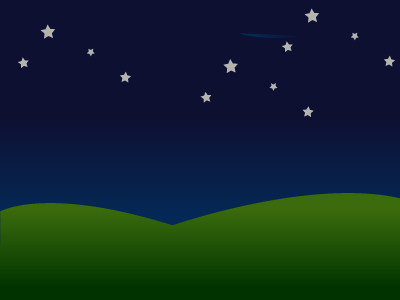
Nightscape image
You can download the Illustrator file here

How to create a custom brush

Creating a custom brush is simple. You draw objects directly onto the canvas. To create the stars I'm cheating and using the Star Tool but you could draw this by hand.
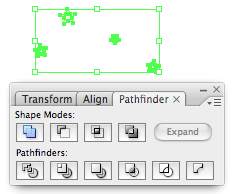
Then select all the shapes using the select tool and bring up the Pathfinder window by going to Window > Pathfinder. Click add to shape area. This joins all the stars together to we can drag them to the brushes window.
Pathfinder window
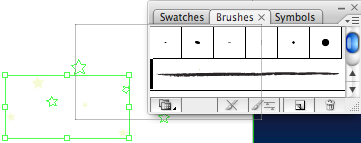
Once you are happy with what you have drawn bring up the Brushes window by going to Window > Brushes. Then with the stars selected drag them into the brushes window. Select New Scatter Brush and then give it a name. Your brush is now ready to use. Once you have added the stars into the Brushes window delete the stars on the canvas.
Dragging into the brushes window

Using the brush

To use the brush just select the brush tool (Shortcut B) and then draw on the canvas. If you draw a curve the stars will scatter around it. This is a very similar effect to the Symbol Scatter Tool but as so often in Illustrator there is more than one way to do things.

Mofifying the brush

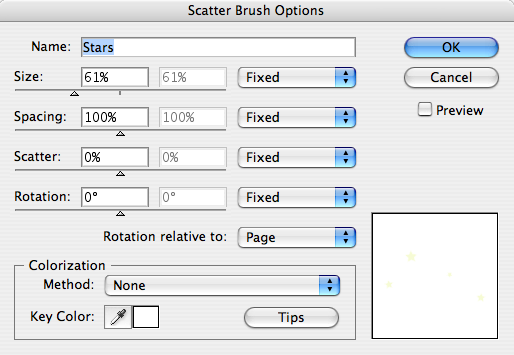
Once you have drawn the stars using your brush you may wish to modify the brush slightly. By double clicking the brush in the brush window you can change many options. You are given the option to update the paths you have already drawn on the canvas so this is an excellent way to fine tune the effect you want.
Brush options

Creating an envelope


Preview


Step 1

Create a rectangle here i created with the following size. 1.93 X 1.96 cm gave the stroke colour #CCCCCC

Step 2

Fill it up with a gradient shade gray to white and Radial fill. #DEDEDE to white

Step 3

Using Pen tool and snap to Point option enabled through view window draw a line similar to the one shown below.


Step 4

Add two more anchor points as shown below.

Step 5

Delete the middle anchor point. and adjust its angle .


Step 6

Using the same gradient fill give a directional fill that is linear this time.

Step 7

Create a copy of the triangular shape and place it a few pixels down than the original one

Send this copy one step backward ie back of the initial triangle shape.

Step 8

Select the nodes of the copy and adjust them bringing them a bit up and joining the rectangle’s corners.

Step 9

Select the two middle anchor points and pull them a little bit down while pressing shift.

Step 10

Give a .25 point stroke to the upper triangle this will give it a crisp edge.

Step 11

Using line tool draw a line as seen below the stroke weight here is 1.

Step 12

Create a copy of the same line give it a white shade , select both lines and duplicate these for the second side.

Step 13

You will need to bring the open triangular flap of the envelope forward.the shadow as well as the top one.

Step 14

Reduce the font width of the white line to .25

Step 15

Give the lines a rounded corner.

Step 16

We will now create an arrow . here is how it is done i first create a triangle using the pen tool .

Step 17

Create a swoosh kind of shape ( i dont know what else to call it :) ) as seen below. and adjust its nodes.


Step 18

Select the both shapes and expand it. using pathfinder pallette.

Step 19

Give it a gradient linear fill as seen below

Step 20

Create 2 copies of the arrow shape duplicate it again and ofset it a bit from the first copy .

Step 21

Using Pathfinder subtract the front.

Step 22

Expand the shape

Step 23

Right click the shape and release Compound path .

Step 24

Adjust the shades and transparencies.

Step 25

We will create an oval shape Behind the artwork this is a dark grey colour , use Effects > Blur > Gaussian Blur

Step 26

This is what you will get!

Final Preview

You can reduce the size effectively using this icon and will not loose any details!!

Logo Design Project Step by Step Walkthrough, Very useful lesson to draw logo with text

Logo Design Project Step by Step Walkthrough

Read the article
web design
A personal project I'm currently working on with a developer friend is a website called myNiteLife. As part of the overall design process one of the first jobs of the project was to develop a logo and brand for the website, follow this step by step documentation of the whole process of the logo design from conception to completion.

Background information:
The whole idea behind myNiteLife is to provide an online organizer and planner for our local city of Sheffield's nightlife, where bars, restaurants and clubs amongst other venues are listed along with user reviews and ratings. Also, the site includes a planner based on a map of the city, where users can plan a route between venues and send out party arrangements to their friends.
With this information in mind, the brand should relate to the audience of 18-40 and express the fun, sexy and nocturnal aspects of city nightlife.
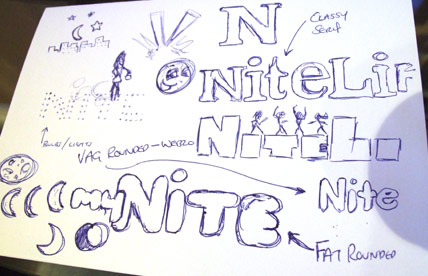
As always, the first stage of the process was to scribble down some ideas and drafts. The original ideas sketched out included the use of spotlights, rounded typefaces, dancing silhouettes, moon shapes and classy serif typfaces.
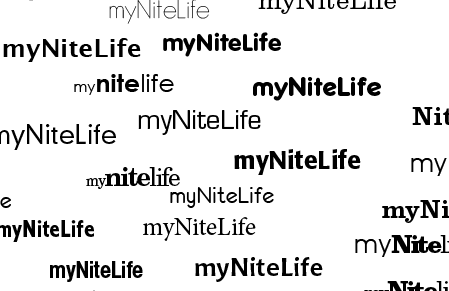
I then booted up Adobe Illustrator to test out a range of type treatments, ranging from thin and modern sans-serif to sexy and classy serifs.
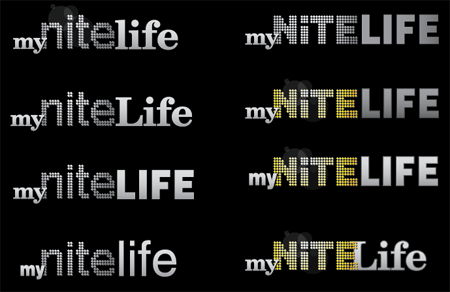
The next stage was to develop various choices of type into draft logo concepts, basing some ideas on the initial thoughts doodled out in the sketches. Planning ahead to the website I knew that a fairly dark colour scheme would be used, therefore I developed the logos on a black background to make sure they looked their best.
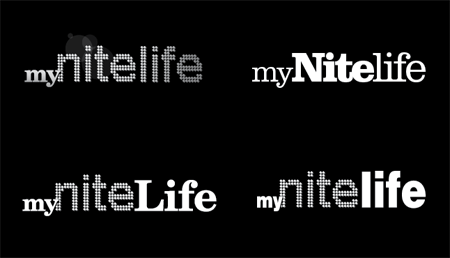
Continuous ideas and concepts developed the logo into four possible concepts, these were then sent to a few friends for their thoughts.
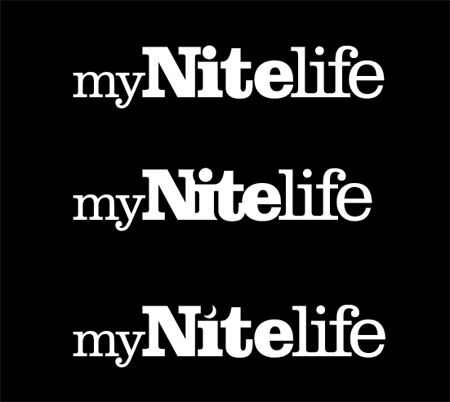
The chosen version was the entirely slab-serif based logo, this was then concentrated on and tweaked slightly into two new versions. The first tweak was to test out the logo with tighter kerning making the letters butt into each other and the second was to swap the dot on the letter 'I' for a crescent moon to represent the night time element.
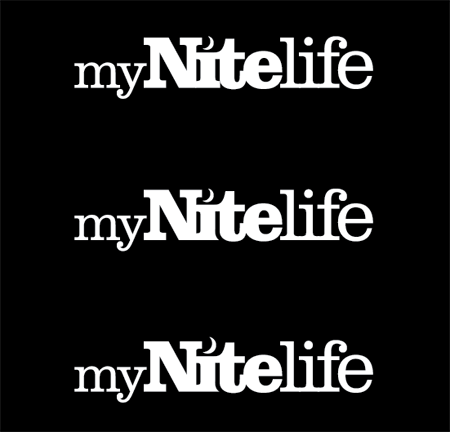
The tight kerning gave the logo a more modern and attractive appearance but made the letter 'I' interfere with the capital 'N'. Combining this with the use of the crescent moon was a perfect solution.
One other issue was the slight interference with the letter 'I' and the letter 't', experiments were made to knock out part of the letter with a flowing curve following the line of the 't'. This helps solve the problem and adds a little designerish touch!
The complete logo design was then complete, shown in it's barebones mono state before being treated to colour and subtle effects.
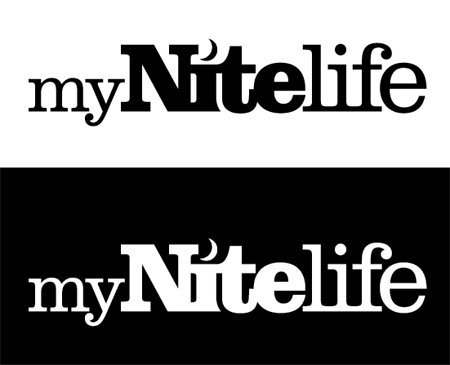
The Making of the myNiteLife Logo
Now you've seen my personal development thoughts behind the logo, I thought it would be great to show the techniques used in Adobe Illustrator to create the final logo from scratch.
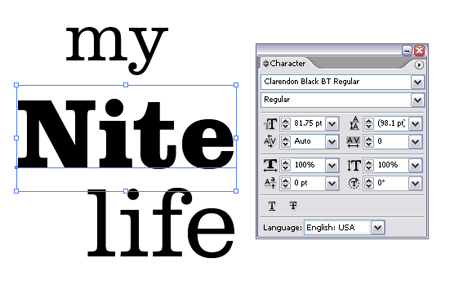
First off, the wording 'my', 'nite' and 'life' were typed out and set in the chosen font of Clarendon, making use of both light and black variations.
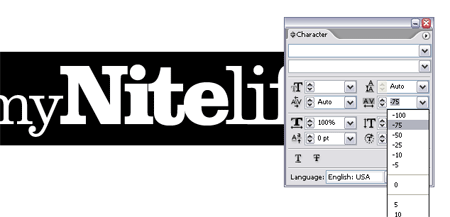
The tight kerning was quickly applied by choosing the -75 option from within the character palette.
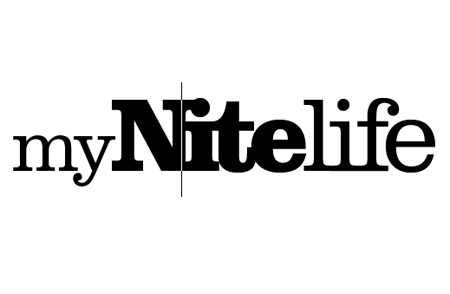
Additional kerning adjustments were made to individual letters, ensuring that all characters overlapped slightly. This was done by using the ALT key along with the left and right cursor keys.
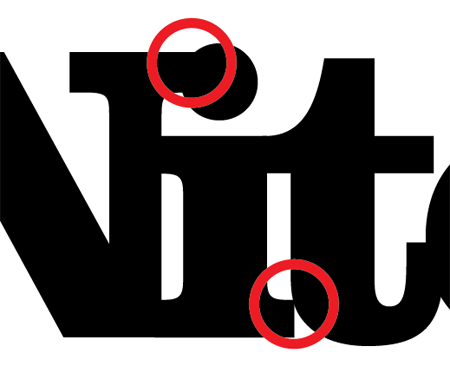
As mentioned previously, this causes unwanted interference with some characters, the solutions of which were to add the pretty curve along the letter 'I' and swap the dot for a crescent moon.
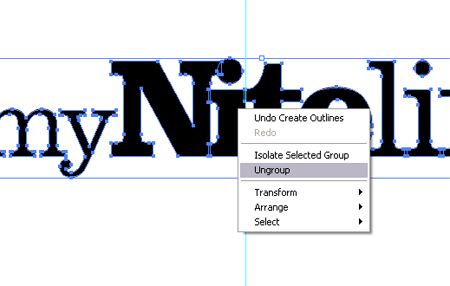
The line of type was converted to outlines (Type > Create Outlines) to make each letter an editable shape. These were then ungrouped to enable access to the letters individually.
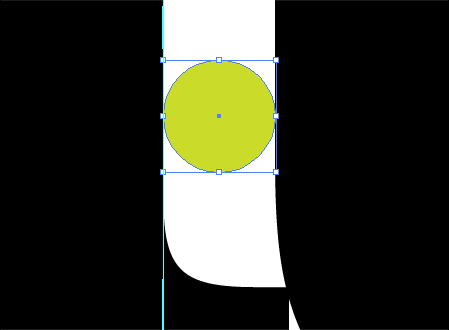
A temporary circle was used as a tool to measure the gap between the letters 'I' and 't'.
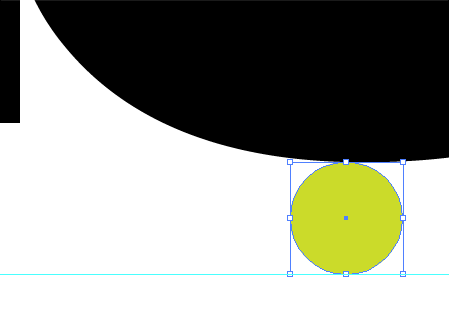
The same tool was used to plot a guide at the same distance from the bottom of the letter 't'.
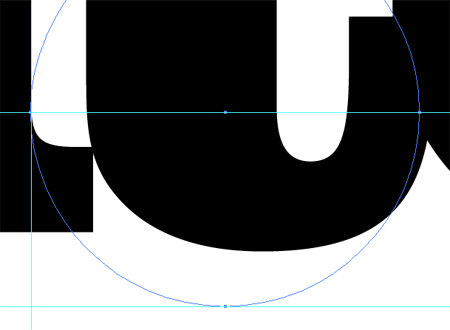
A third guide was added to the lowest most part of the straight edge of the letter 'I'. Using all three guides a larger circle was drawn which resulted in an accurate curve that followed parallel to the outline of the letter 't'.
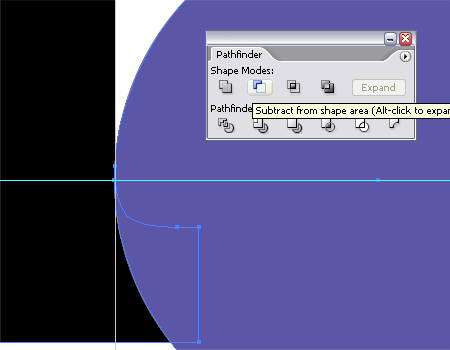
Using this new circle along with the Subtract from Shape Area option from the Pathfinder tool enabled the excess section of the letter 'I' to be chopped out.
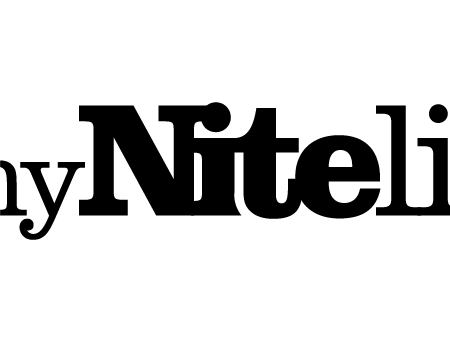
The resulting shape of the letter 'I' I think gives a slightly more unique characteristic to the logo.
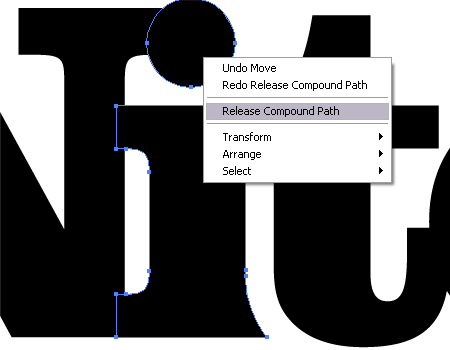
The final fix to the logo was to add the crescent moon shape to relate to the night aspect of the brand. To edit the letter 'I' the Compound Path was released to separate the shape into two pieces.

The dot was scaled up to give more of a visual impression, then a temporary circle was used to knock out an area of the shape to give the crescent shape.
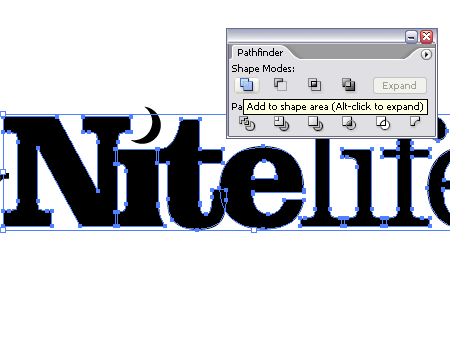
The only remaining step was to clean up the logo by combining all the individual letter shapes into one complete object using the Add to Shape Area from the Pathfinder tool.

With the logo being generated in the mono state it could then be given some sprucing up with colour and slight visual effects. The colour purple was chosen for the brand to relate to the sexy and classy image that the myNiteLife site was to portray, and also gives a nice deep colour to represent the colours associated with dusk.
Love it or hate it? I’d be happy to hear your thoughts in the comments.