Custom Brushes in Illustrator are an excellent way to add to designs. Here's a short tutorial how they work and how to use them.
This tutorial will focus on scatter brushes.

You can download the Illustrator file here
How to create a custom brush
Creating a custom brush is simple. You draw objects directly onto the canvas. To create the stars I'm cheating and using the Star Tool but you could draw this by hand.Then select all the shapes using the select tool and bring up the Pathfinder window by going to Window > Pathfinder. Click add to shape area. This joins all the stars together to we can drag them to the brushes window.
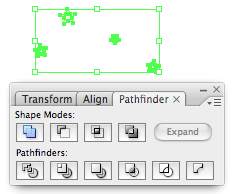
Once you are happy with what you have drawn bring up the Brushes window by going to Window > Brushes. Then with the stars selected drag them into the brushes window. Select New Scatter Brush and then give it a name. Your brush is now ready to use. Once you have added the stars into the Brushes window delete the stars on the canvas.
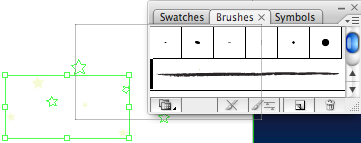
Using the brush
To use the brush just select the brush tool (Shortcut B) and then draw on the canvas. If you draw a curve the stars will scatter around it. This is a very similar effect to the Symbol Scatter Tool but as so often in Illustrator there is more than one way to do things.Mofifying the brush
Once you have drawn the stars using your brush you may wish to modify the brush slightly. By double clicking the brush in the brush window you can change many options. You are given the option to update the paths you have already drawn on the canvas so this is an excellent way to fine tune the effect you want.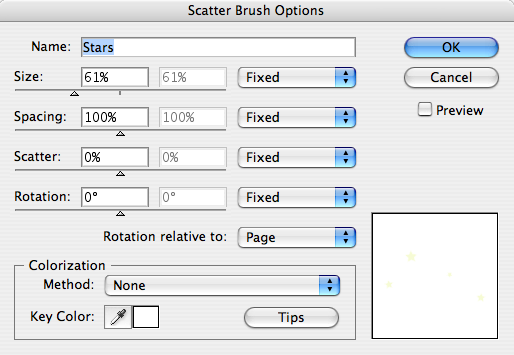

No comments:
Post a Comment